
Canva AI Headshot Generator
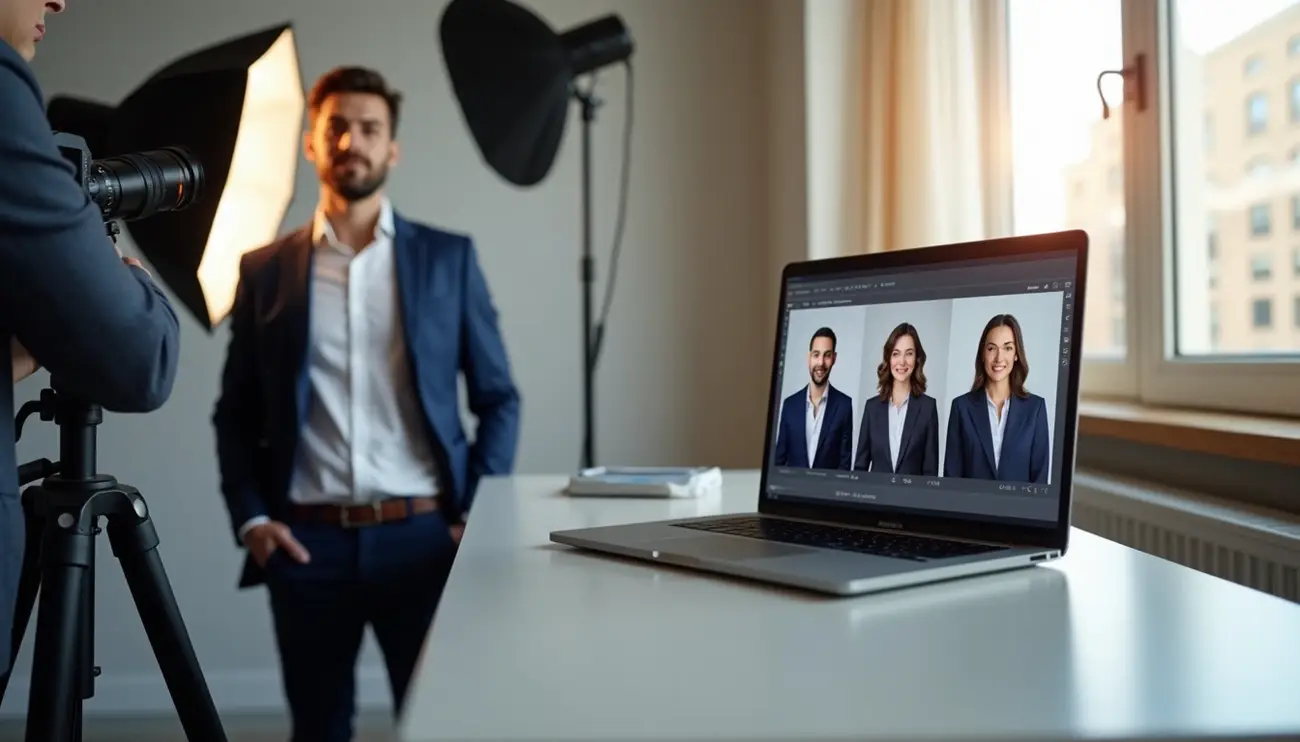
Your old method of traditional headshot photography could cost $500 or more. It requires hours of planning, setup, shooting, editing, and printing. Canva AI Headshot Generator is revolutionizing this process, making professional-quality headshots faster, easier, and more affordable for everyone.
Can create stunning, studio-quality headshots in just few minutes with Canva? The platform offers one AI headshot credit monthly with its free plan. This makes professional-looking photos available to everyone.
A few simple clicks with Canva AI Headshot Generator can give you a clean, professional look that boosts your digital presence. However, I must say I’m not fully convinced, AI SuitUp feels like the better choice.
What is Canva AI Headshot Generator?
The Canva AI Headshot Generator turns regular selfies into polished professional portraits without much effort. This tool uses artificial intelligence to create headshots that look like they came from a professional studio.

Overview of Canva’s AI features
The AI Headshot Generator works as part of Canva’s growing collection of AI-powered design tools. This feature analyzes your uploaded photo and improves it automatically to make it look professional. The technology works in two main ways:
You’ll find a dedicated AI Headshot Generator in Canva’s apps section that transforms photos with one click. On top of that, it comes with a Magic Edit tool that lets you make custom changes to your photos.
Magic Edit tool really shines because of how flexible it is. I just brush over parts of my photo and tell it what I want to change. To cite an instance, see how I highlight my shirt and type “professional blue blazer.” My casual clothes change into business wear right away. The system shows me four different options based on what I asked for.
The tool stands out with these valuable features:
- Background enhancement: You can swap or blur distracting backgrounds with solid colors or professional settings
- Facial optimization: The tool adjusts skin tone, removes blemishes, and refines facial features naturally
- Lighting adjustments: Better lighting creates a more professional look
- Template variety: You get access to more than 20 different style templates for business, casual, and creative looks
- Canva AI Headshot Generator can give you a clean, professional look that boosts your digital presence.
This tool becomes even better because it’s part of the bigger Canva platform. You can use your new headshot in resumes, business cards, presentations, and social media posts right away.
How it compares to traditional headshots
Professional headshots usually need a photographer booking, session scheduling, and lots of time and money. The Canva AI Headshot Generator gives you better options.
The cost difference jumps out first. Professional photographers might charge over $100, but Canva’s tool costs between $2-5 per photo at most. Budget-conscious users get one free AI headshot credit monthly with their free plan.
The convenience makes a big difference too. Instead of booking appointments and waiting for edited photos, I create professional headshots in minutes from my desk. This quick turnaround helps especially when deadlines are tight or you need photos quickly.
The tool has some limits worth mentioning. Users sometimes say the generated images look a bit artificial, with too-smooth skin or synthetic-looking backgrounds. The available templates and styles might not work for people who want very specific or unique looks.
These limitations aside, the tool delivers great value for everyday professional needs. It works perfectly for LinkedIn profiles, resumes, and business websites where you need a polished image but don’t require absolute photographic perfection.
How to Use Canva AI Headshot Generator (Step-by-Step)
Creating professional headshots has become easier with Canva’s AI headshot generator. Here’s a simple guide that shows you how to turn your everyday photos into polished, professional headshots.
1. Start a New Design Project
Go to the Canva AI Headshot Generator page.
You’ll need Canva Pro or a 30-day free trial because the Magic Edit tool is only available to Pro users. Sign in to your Canva account. The “Create a design” button sits in the upper right corner – click it. The “Instagram Post” option gives you a perfect square template that works great for headshots. This square PNG format suits professional portraits and allows easy adjustments later.
2. Upload Your Photo
Upload your photo by taking a new picture with your phone or by dragging and dropping an old front-facing photo.

The purple “Upload files” button on the left sidebar lets you add your chosen image. Pick a clear photo of yourself. The background and your outfit shouldn’t worry you since you can change them later. Your final result depends on your starting image’s quality, so choose one with good lighting that shows your face clearly.
3. Use the Magic Edit tool
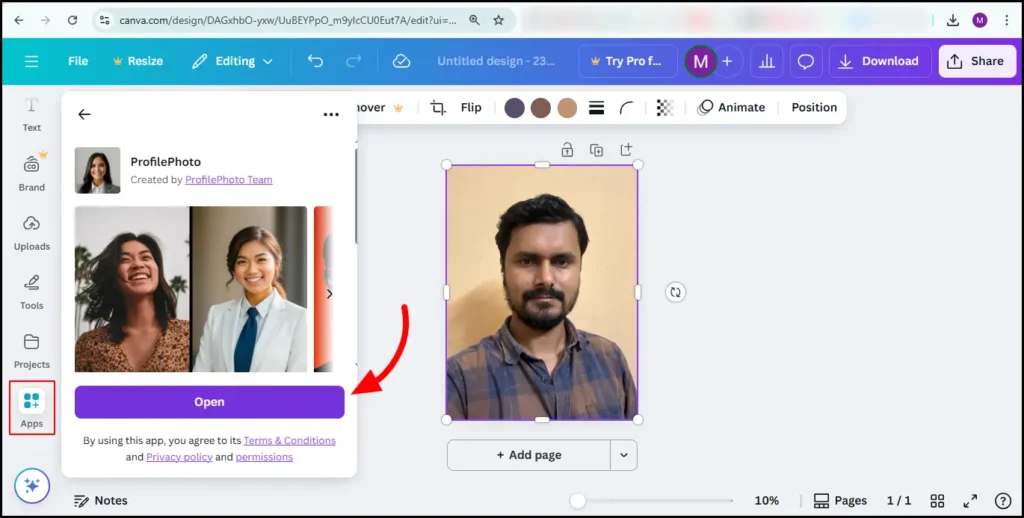
Select the options as shown in the image below (also called apps). From there, the ProfilePhoto app window will pop up.
Select your uploaded image and click “Edit photo” in the top toolbar. Look under Magic Studio and select “Magic Edit.” This AI tool helps you modify specific areas by brushing over them. A slider controls the brush size – make it bigger for large areas or smaller when you need precision.
4. Change outfit or background
Brush over any area you want to change, such as your clothes or the background. Click “Continue” after highlighting the area. A text box appears where you describe what you want instead. To name just one example, you might type “professional top, maybe even a blouse” or “corporate background with blurred office setting.” The more specific your description, the better results you’ll get.
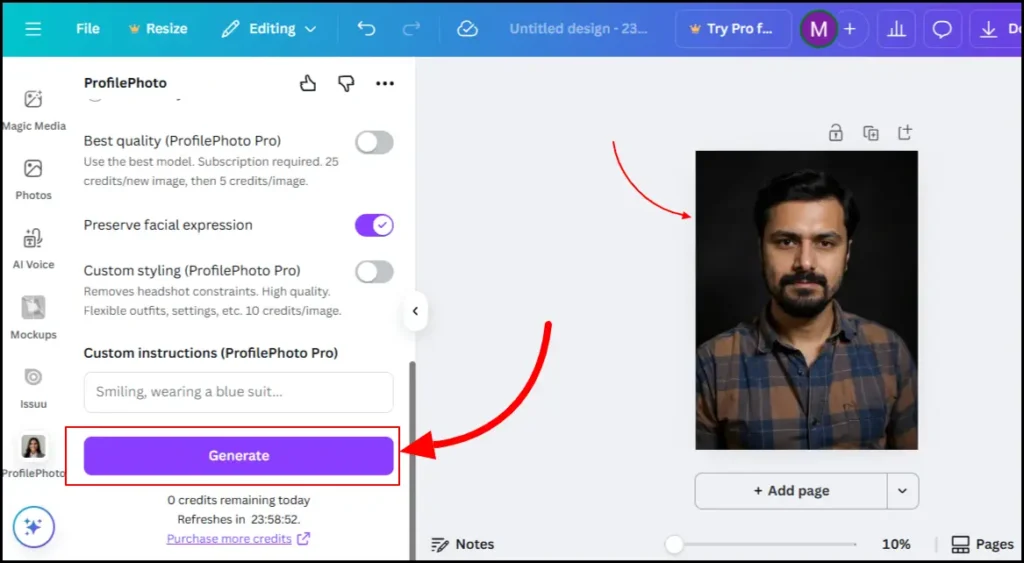
5. Generate AI Headshot and review options
The “Generate” button starts the process. Canva creates four different options based on your description. Take time to review each one.
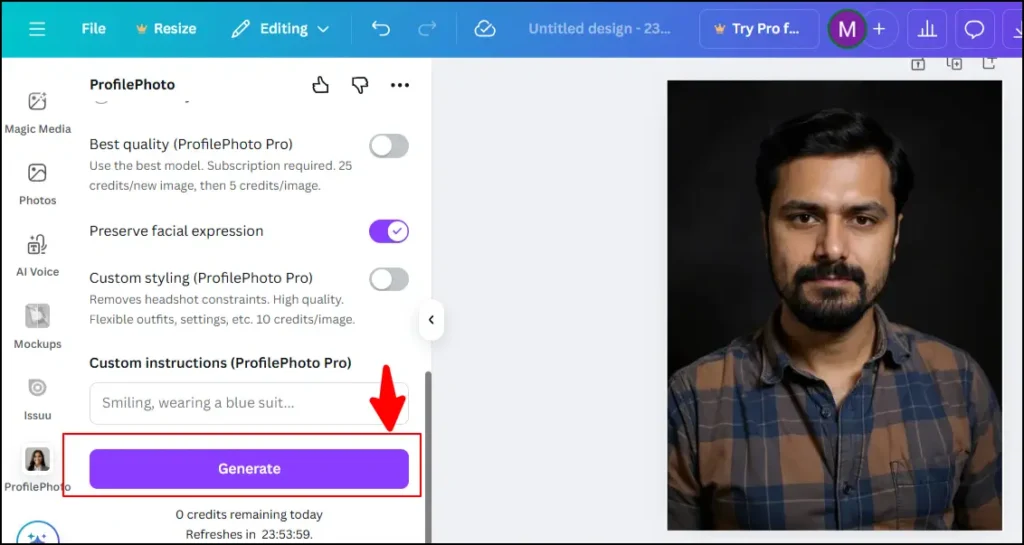
None quite right? Just click “generate new results” and you’ll get more choices. Pick the option that matches your professional needs with a simple click.
6. Download your final headshot
Your satisfaction with the headshot means you’re ready to save it. Click “Share” in the top right corner, then “Download.” PNG format gives you the best quality.

Your new AI-generated professional headshot stands ready to use on LinkedIn, your website, or any professional platform.
Customizing Your Headshot for a Professional Look
The real magic starts at the time you customize your original AI headshot. Canva’s powerful editing tools help you turn a good headshot into an exceptional one that shows your professional identity perfectly.
Adjust lighting and contrast
Good lighting can make your professional image stand out. The editing panel in Canva lets you click on your headshot and select “Edit” followed by the “Adjust” tab. You’ll see sliders to boost your image quality through brightness, contrast, saturation, and other properties. The “Auto-adjust” feature automatically balances your lighting and colors for quick improvements.
Professional photographers say portraits look most flattering with balanced lighting that removes harsh shadows. Here are some manual adjustment tips:
- Your image looks too dark? Bump up the brightness a bit
- A moderate contrast boost adds definition
- The right warmth settings create an inviting look
Canva’s precision editing lets you target specific areas—pick “Whole image,” “Foreground,” or “Background” to make adjustments exactly where you want them.
Choose the right background
Your choice of background tells a lot about who you are professionally. The Canva AI headshot generator comes with several great background options:
- Classic office settings: These work best for corporate roles. Neutral walls and subtle office elements project reliability and competence
- Blurred cityscapes: These suit international business professionals who want to show a cosmopolitan, dynamic image
- Natural, well-lit indoor settings: Warm, neutral tones create an approachable yet professional appearance
- Industry-specific backgrounds: These showcase your expertise area right away
The background should complement your skin tone and clothes. Dark clothing needs a lighter background to stand out, and light clothing needs a darker one.
Pick a style that fits your brand
The Canva AI headshot generator gives you 12 different style options to match your personal or professional brand. Your industry standards and unique brand position should guide your style choice.
Corporate roles look best with formal attire and neutral expressions. Creative professionals might prefer options with artistic elements or casual-professional clothing. Your expression should match your brand values—leaders need to look confident while customer-facing roles should appear approachable.
A cohesive personal brand needs consistency across platforms. Your LinkedIn headshot might be more formal than your Twitter image, but both should share similar lighting, positioning, and style elements.
Tips to Make Your AI Headshot Look More Realistic
Your AI-generated headshots will look more realistic based on the quality of your reference photos. You can get better results by following these best practices before uploading images to the Canva AI headshot generator.
Use high-quality selfies
The quality of your AI-generated headshots depends on the resolution of your reference photos. Your uploaded images should be at least 1,000 pixels wide for the best results. Here’s what you should do while taking photos for AI headshot generation:
- Pick recent photos from the last 3-6 months that show how you look now
- Your images should be sharp and focused—skip blurry, grainy, or heavily filtered photos
- Take photos with consistent lighting; natural window light works best
- Keep your face centered in the frame
- Upload 10-15 high-quality selfies so the AI can learn your facial features better
The AI needs clean, detailed images to understand your facial features accurately. You won’t get good results from screenshots, heavily compressed social media photos, or digital zoom images.
Avoid busy backgrounds
Your reference photos’ background can disrupt the AI’s understanding of your features. These tips will help the AI create crisp, clean headshots that focus on you:
- Use plain, neutral backgrounds like solid-colored walls (white, gray, or beige)
- Keep your background free of clutter, distracting artwork, or personal items
- Create natural depth by standing a few feet away from the background wall
- Skip reflective surfaces like mirrors, glass, or glossy surfaces that confuse the AI
The AI will detect edges better and create more realistic professional headshots without messy edges or background bleeding into your portrait.
Keep facial expressions natural
People often make the mistake of using reference photos with exaggerated expressions that look unprofessional. Here’s how to help the AI create genuine, professional-looking headshots:
- Show a slight, confident smile that looks relaxed rather than forced
- Keep your mouth position natural—a closed-mouth smile or slightly parted lips works well
- Your face should look relaxed, with natural eyebrows and forehead without raised eyebrows or deep frown lines
- Take multiple photos with subtle expression changes to give the AI more natural data
Your AI-generated headshots will look more genuine and professional this way, avoiding that artificial look from overly enthusiastic expressions.
Common Mistakes to Avoid When Using Canva AI Headshot
AI tools are powerful, but they can’t fix everything in your professional headshots. You’ll get better results by knowing what mistakes to avoid with the Canva AI headshot generator.
Using low-resolution images
Poor quality photos will ruin your AI headshots. The Canva AI headshot generator needs high-quality input to create detailed and sharp professional images. Blurry or pixelated original photos make it hard for the AI to work its magic. The results won’t look professional.
Your uploaded photos should be at least 1,000 pixels wide. This gives the AI enough detail to work with and creates crisp, professional-looking headshots. Canva’s AI can try to make smaller images bigger, but it can’t create details that weren’t there to begin with.
Image quality becomes even more important when you use these headshots on career websites, LinkedIn profiles, or professional networking platforms. These platforms shape people’s first impression of you.
Over-editing the final result
Having powerful editing tools can make you go overboard with adjustments. Too much editing makes your headshot look fake and artificial. Here’s how to spot an over-edited AI headshot:
- Skin looks too smooth with no natural features like freckles
- Edges look too sharp and unrealistic
- Lighting doesn’t match the shadows or highlights on your face
- Facial features don’t look natural anymore
- Skin color looks wrong because of incorrect color correction
Professional headshots should improve your appearance, not change who you are. The goal is to look like yourself on your best day.
Ignoring aspect ratio and framing
Your headshot’s width and height ratio shapes how it appears on different platforms. Wrong aspect ratios or bad framing can make your image look awkward when platforms crop it automatically.
Instagram users need to pay special attention to ratio requirements. The platform only accepts 1:1 (square), 1.91:1 (horizontal), or 4:5 (vertical) ratios. Setting the right aspect ratio before you start helps you compose your AI headshot better.
Stretching images to fit certain spaces often distorts them. Keep the original proportions when you make your headshot bigger or smaller. This simple step helps you avoid looking like an amateur.
Canva vs Other AI Headshot Generator Tools
A good understanding of AI headshot tools’ strengths and limitations will help you pick the right one for your needs.
BetterPic AI Headshot Generator vs Canva AI Headshot Generator
BetterPic has substantially more variety with over 150 looks that cover business, casual, startup, and glam categories. Canva’s AI headshot generator has fewer style options but naturally fits into its existing design ecosystem. BetterPic’s results look more realistic than Canva’s output, which can look too processed or “AI-y” at times. These tools have different pricing models – BetterPic charges $35 for 20 shots, while Canva’s Pro subscription costs $15 monthly and includes this feature.
AI Suitup vs Canva AI Headshot Generator
AI SuitUp shines with its speaking and presentation poses – something you won’t find in Canva. This makes it a great choice for professionals who want action shots for their speaking events. AI SuitUp handles hair details better than other tools, while Canva doesn’t do very well with hair accuracy. The platform gives clear explanations if your photo gets rejected, thanks to its full photo validation process.
Fotor vs Canva AI Headshot Generator
Fotor takes a fun approach with its free package and creative styles like astronaut or luxury. You only need one photo to start with Fotor, unlike other tools that ask for multiple images. These tools work better for casual social media profiles than professional LinkedIn headshots.
Aragon vs Canva AI Headshot Generator
Aragon puts quality first by focusing on facial accuracy and tone, and creates headshots in about 60 minutes. Many users say Aragon’s headshots look just like professional photographer’s work. The platform learns from 6-10 photos to create your custom model, which results in true-to-life portraits. Aragon costs more than Canva but delivers better quality to justify its price.
AI Headshot Generators: Side-by-Side Comparison of Canva, BetterPic, Fotor & More
Looking for the perfect AI headshot tool? Let’s see how the Canva AI headshot generator compares to leading competitors in price, features, and performance.
Top AI headshot generators show clear differences in what they offer and how much value you get. Canva’s AI Photo App gives you free access with some limits – you can create up to 50 AI images with an accessible interface. Users who need more can get a Canva Pro subscription at $15/month.
BetterPic stands out when it comes to quality and customization. You’ll pay $35 for 20 high-resolution headshots and get 150 style combinations with AI editing features. BetterPic’s customization options are better than Canva’s, though some users say the faces can look “too shiny” and a bit unnatural.
Each platform takes different time to deliver:
- Canva AI headshot Generator: About 30 minutes (not recommended unless you’re a pro graphic designer and experienced Canva user).
- BetterPic: 1–2 hours (Best Alternative).
- AI SuitUp: 1–2 hours (Best Alternative).
The user experience matters too. Canva scores “Medium” in ease of use. You can use it without needing technical expertise. However, one reviewer bluntly stated that Canva’s AI headshot results were “absolute trash” compared to specialized tools.
Your best choice depends on what you need most: Canva for design tool integration, BetterPic for deep customization, or Portrait Pal for specialized professional results.
My Honest Review of Canva AI and Other AI Headshot Generators
My extensive testing of AI headshot generators shows that Canva’s tool gives poor results. The platform focuses on ease of use rather than premium quality with a user-friendly interface. Users can generate up to only one AI images with the free plan.
The quality falls nowhere near specialized alternatives. My tests revealed that the generated images look more like heavily filtered Instagram photos than professional headshots. The tool creates blurry images at times and has issues with hair length. Some photos even show people with crossed eyes.
Canva makes up for its quality issues with speed and convenience. The whole process takes just 10 seconds, which works great when you need quick results.
Tools like BetterPic or AI Suitups create much better professional headshots than Canva. These alternatives produce realistic images that keep natural facial features without the artificial look you see in Canva’s results.
Canva added this AI headshot feature to keep up with market trends rather than deliver premium results. The tool works fine for simple headshots in casual settings. Professional needs require better investment in specialized tools to protect your reputation.
Which AI Headshot Generator is Best?
Your choice of AI headshot generator depends on what you need and how much you want to spend. Our research shows BetterPic stands out as the best option for professional business headshots with realistic results. Major companies like Walmart and American Express use their service, and you can get your photos back in 1-3 hours.
HeadshotPro’s packages start at $29 for 40 AI headshots. This beats traditional photography services that cost around $232.50 in the US. Their “Profile-Worthy guarantee” means you’ll get your money back if you can’t find a single usable headshot.
Dreamwave and Aragon are also strong choices. Dreamwave does a great job with solid color backgrounds and fixing teeth issues. Aragon needs fewer photos to work with and delivers well-cropped, nicely lit shots in about an hour.
Aragon.ai creates the most realistic, photographer-style results. Budget-conscious users might prefer Try It On AI, which gives you 100-200 headshots for $21.
Canva’s AI headshot generator works as part of their design platform. It gives you instant results but doesn’t match the quality of specialized services.
FAQs About Canva AI Headshot Generator
Q1. How can I make my AI-generated headshots look more realistic?
To create more realistic AI headshots, use high-quality reference photos taken in good natural lighting. Capture multiple angles, including front and side views. Use detailed prompts specifying clothing, background, and lighting when generating the image. Experiment with both simple and complex prompts to see which produces better results.
Q2. What’s the process for creating an AI professional headshot in Canva?
To create an AI professional headshot in Canva, start by opening the Canva app or website. Access the AI headshot generator app from the left sidebar. Upload a selfie, then use the generator to create your AI headshot. Refine the result using Canva’s editing tools, and finally download and share your new professional headshot.
Q3. Which AI headshot generator produces the most realistic results?
While results can vary, Aragon.ai consistently produces some of the most realistic, photographer-like headshots among AI generators. It requires fewer reference photos and typically delivers well-cropped, well-lit results within about an hour.
Q4. Is Canva’s AI headshot generator suitable for professional use?
Canva’s AI headshot generator is more suited for casual use or quick results. For truly professional-looking headshots, specialized tools like HeadshotPro or Aragon AI tend to outperform Canva, producing more realistic images that better preserve natural facial features.
Q5. How do the costs of AI headshot generators compare to traditional photography?
AI headshot generators are generally more cost-effective than traditional photography. For example, HeadshotPro offers 40 AI headshots for $29, while the average cost for a traditional headshot session in the US is around $232.50. Many AI tools also offer free or low-cost options for a limited number of images.